
Connect Naver Commerce (Smart Store)
Connect Naver Commerce to analyze your product list together with orders and sales by period, right in chat. Neuro uses your Smart Store data directly to answer questions like “Show me last month's paid orders” or “List the products currently on sale.”
1. Before you connect, set things up in Commerce Center
Naver lets an outside service access its API only after the seller designates that service as their agency. Finish the four steps below in Commerce Center before you connect.
Go to SmartStore Center > Store management > Store settings > API Management (스마트스토어센터 > 스토어관리 > 스토어 설정 > API 관리).
Set API usage to "Use" (API 사용: 사용).
Set 팡고뉴로 (Pango Neuro) as the agency for both the Product API and the Order API, then save.
Copy the "API integration seller ID" (API 연동용 판매자ID) value shown on the screen. (e.g. ncp_xxxxxx_01)
2. Connect in Neuro
On your workspace's Data sources page, select Naver Commerce.
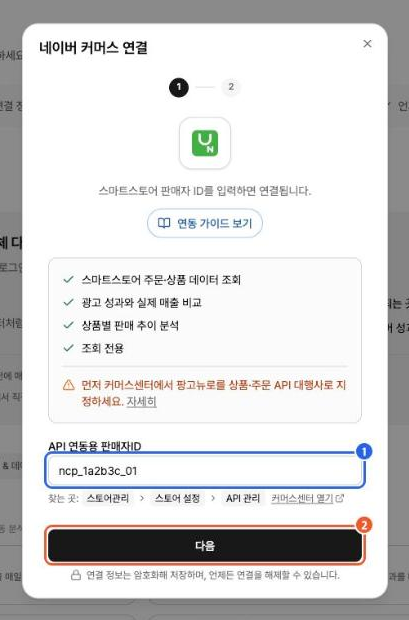
Enter the API integration seller ID you copied in step 1 and click Next. (e.g., ncp_xxxxxx_01)
On the Verify store ownership screen, copy the verification code. It's valid for 30 minutes.
In SmartStore Center, go to Products, edit any product, paste the code into Seller product code (seller management code), and save.
Go back to Neuro and click Verify and connect.
The verification code confirms that you actually manage this store. Once connected, you can change the seller product code back. When the connection succeeds, Naver Commerce appears under "Data sources" on the left side of the chat.
3. What you can do in chat after connecting
Look up products — List products by sales status (on sale, sold out, pending, and more), or find a specific product by product number or management code
Look up orders by period — Find orders by date range and status, like “paid orders in June” or “last week's cancellations.” You can ask for a long period all at once (Neuro splits it up and gathers everything for you).
See sales trends — Total order amounts, quantities, and traffic sources by period
4. How is buyer personal information handled?
Order data can include buyer information. Neuro masks personal details such as the buyer's name, contact info, full address, personal customs clearance code, and delivery notes before using the data for analysis. Ad and sales analysis doesn't require knowing who the buyer is, so Neuro keeps only what the analysis needs, such as amounts, products, status, period, and traffic source.
5. If something isn't working (troubleshooting)
I see "We couldn't validate this seller ID"
In Commerce Center, check that ① API usage is set to "Use," ② 팡고뉴로 (Pango Neuro) is set as the agency for both the Product API and the Order API, and ③ you copied the seller ID correctly. If any of these is missing, the connection is blocked.
It says the seller ID format is incorrect
Copy the "API integration seller ID" value from the Commerce Center API management page and paste it exactly as is. (e.g. ncp_xxxxxx_01) It isn't your store URL or any other ID.
Products load, but orders don't
The Order API agency hasn't been set. In Commerce Center, set 팡고뉴로 as the agency for the Order API too.
I see "We couldn't find a product with this code"
Make sure the verification code is in the product's seller product code (seller management code) and that you saved it. If you just saved it, try again in a moment.
I see "This code has expired"
The verification code is valid for 30 minutes. Click Back to get a new code, then try again.
I see "This Naver Commerce seller is already connected"
That seller ID is already connected to this workspace. Check your existing connection.
It's connected, but it doesn't show up in the list on the left
Wait a moment and refresh the page. If it still doesn't appear, contact our support team.