
Connect Microsoft Ads (Bing)
Connect Microsoft Ads (Bing) to analyze performance reports and campaign structure right in chat. Questions like "Summarize last month's Bing campaign performance" or "Find keywords with low conversion rates" are answered with your Microsoft Advertising data.
Before you connect: check how you sign in
Microsoft Advertising only lets you sign back in with the method you chose when you signed up. Check which method you used.
Microsoft account — if you signed up with a work or school account (a Microsoft account tied to your company email) or a personal Microsoft account (Outlook, Hotmail, etc.)
Google account — if you signed up for Bing Ads by clicking "Sign in with Google" (Google Workspace or Gmail)
How to connect
In Data sources, select Microsoft Ads.
Choose the sign-in method you confirmed above (Sign in with Microsoft or Sign in with Google).
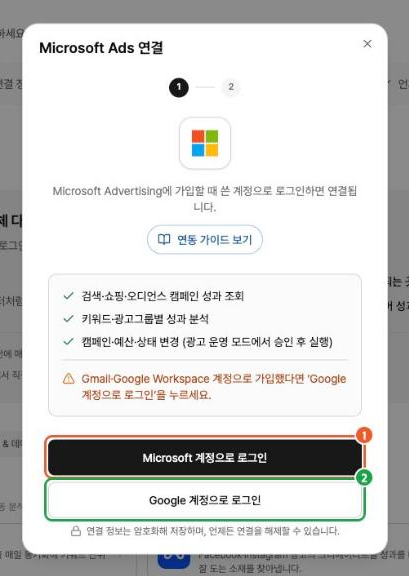
In the pop-up, sign in to Microsoft (or Google) and grant access.
From the account list, select the account you want to connect. Accounts are shown as Account number · Customer number, so use the numbers to tell them apart if you have several.
Once selected, Microsoft Ads (Bing) appears under "Data sources" on the left side of the chat.
What you can do after connecting
Performance reports — view and total metrics such as impressions, clicks, cost, and conversions by time period
Campaign structure — view the hierarchy of campaigns, ad groups, ads, and keywords
Keyword analysis — spot low- and high-performing keywords from keyword-level results
Campaign management — create, edit, pause, and delete campaigns, ad groups, ads, and keywords
Troubleshooting
"Account not found" — This usually happens when you sign in with a different method than you signed up with. If you signed up with Google, sign in again with your Google account; if you signed up with Microsoft, sign in with your Microsoft account.
The account list is empty — The account you signed in with doesn't have Microsoft Advertising access. Try again with a sign-in that has access, or ask your account admin for access.
Sign-in window errors or the pop-up closes — Turn off your pop-up blocker and try again. If it keeps failing, contact our support team.