
Connect Naver Search Ads
To connect, you need three values from Naver Ads Center: ① CUSTOMER_ID, ② Access License, and ③ Secret Key. Just copy them over, following the numbers in the image below.
1. Find the values in Naver Ads Center
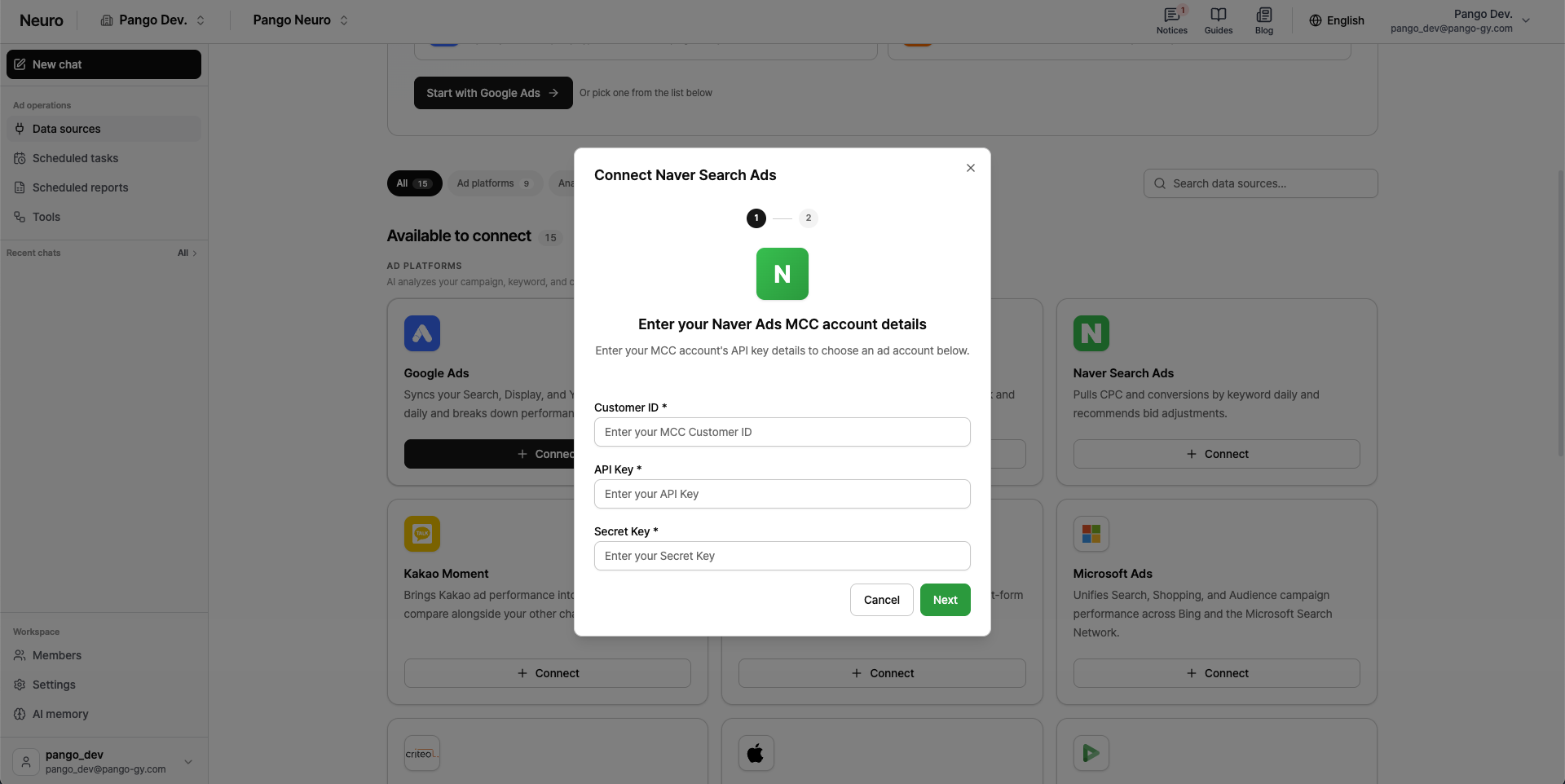
Sign in to Naver Ads Center and go to the Tools > SA API usage management (도구 > SA API 사용 관리) page.
If you're not using the Naver Search Ads API yet, apply for API access first.
Find these three values on the page.
① CUSTOMER_ID — the number after '현재 접근 중인 광고계정 : CUSTOMER_ID = ' (the ad account you're currently viewing), above the table.
② Access License — copy it with the Copy (복사) button in the first row of the table.
③ Secret Key — copy it with the Copy (복사) button in the second row of the table.

2. Enter the values in Neuro
On the Data sources page in Neuro, select the Naver Search Ads card.
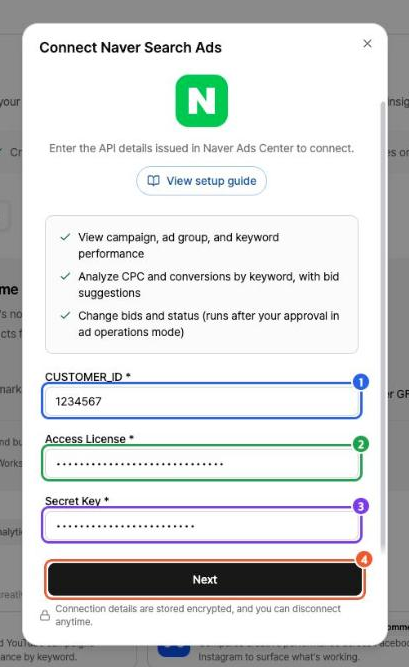
In the connection window, paste each value into the field with the same number and click Next.
① CUSTOMER_ID → CUSTOMER_ID field
② Access License → Access License field
③ Secret Key → Secret Key field
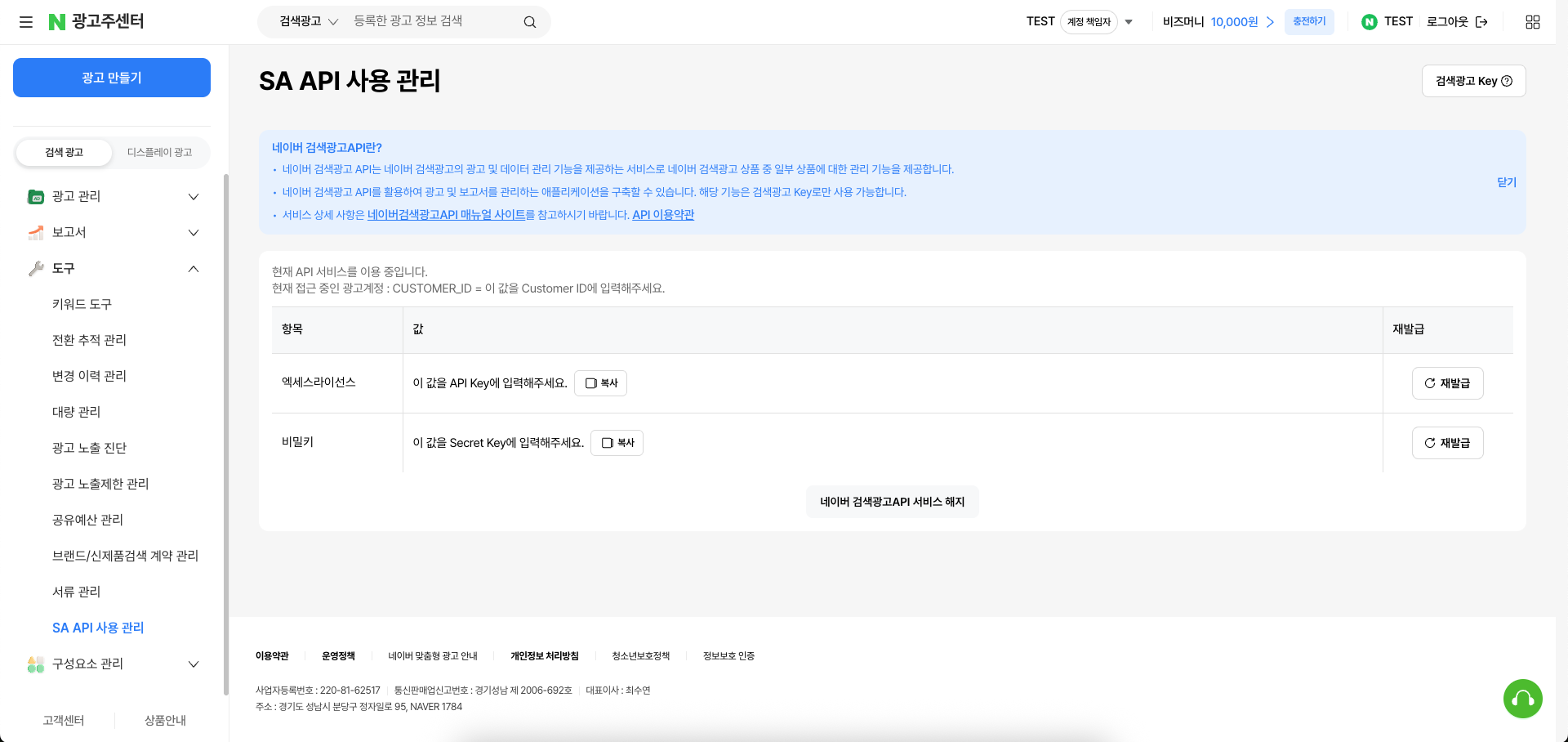
On the Ad accounts or Manager accounts tab, select the account to connect.
If you have many accounts, search by account name or Customer ID in the search box at the top.
If you select a manager account, you can expand the list and choose the ad accounts under it.
Notes
Review the data collection policy below so you can analyze your Naver Search Ads data reliably.
Available date range: You can view data going back up to one year from when you first connect.
Initial data collection: When you first connect, it takes up to about an hour to load your data. Once that's done, you can use AI chat and analysis as usual.
Data updates: Data refreshes periodically, so real-time campaign details and performance may show with a slight delay.