
Chat options
From the menu in the message box, you can attach files or ad creatives and set the AI model, Ad Operations Mode, Gems, and Simple answers.


Behavior settings
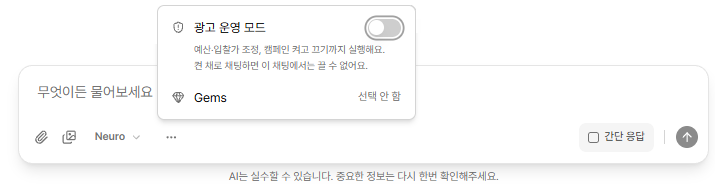
Ad Operations Mode
ON: You can ask the AI to actually run your ad platforms, like editing campaigns or changing budgets. When the AI proposes a change, an [Approve/Reject] card appears, and nothing reaches your live ads until you give final approval.
OFF (default): A safe mode that only reads and analyzes data.
Gems: Save instructions you use often (role, tone, rules) and apply them to a chat.
Simple answers: Gets straight to the point in a short answer. The facts and numbers stay the same, with less jargon. Shorter answers can lower your usage (cost).

Choosing a model
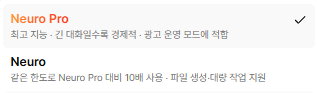
Standard — Fast responses. Best for simple tasks.
Pro — Deep analysis and reasoning. Best for complex tasks.
Tools
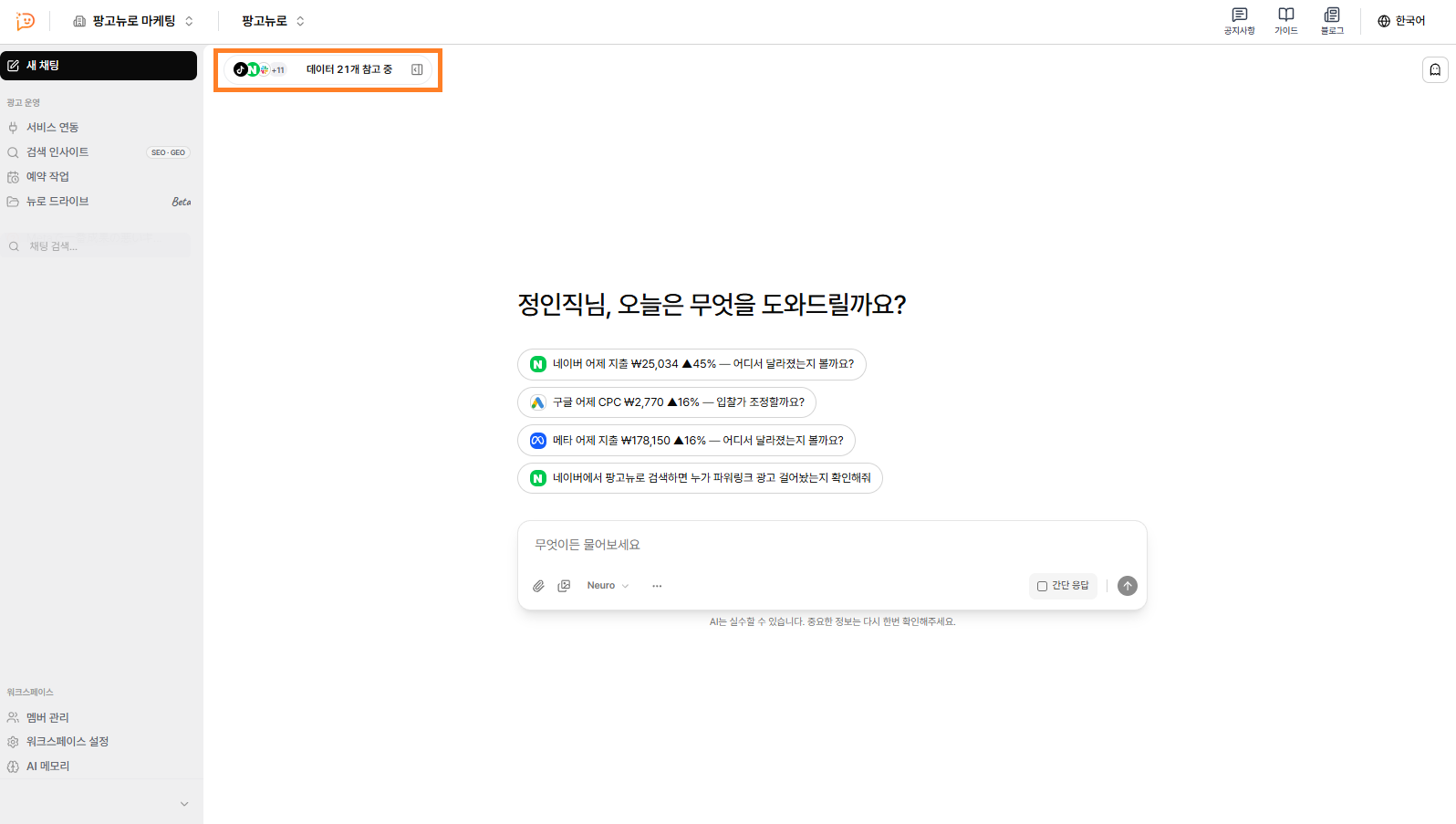
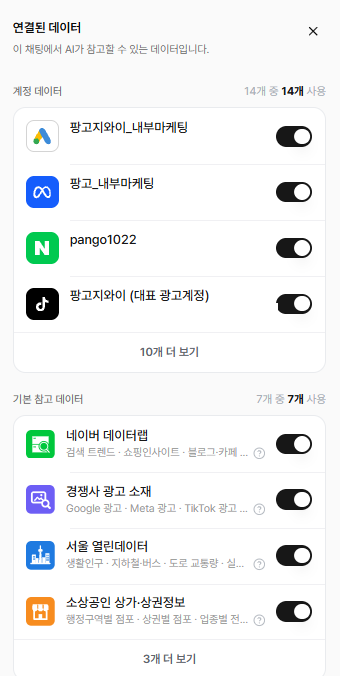

Choose whether to turn on your connected ad platforms (Google, Naver, Meta, and more) and built-in tools (trends, competitor creatives, public data, and more).