
Connect Google Docs
Once you connect Google Docs, the AI can save its insights straight into a new document, and for documents the AI has already created, you can keep adding to them just by chatting.
How to connect
In Workspace > Data sources, select Google Docs.
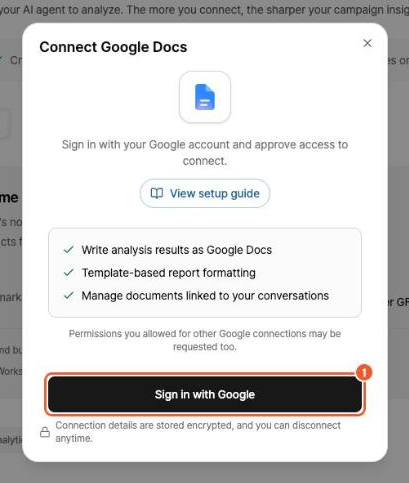
Click Sign in with Google, then sign in to Google and grant access in the pop-up.
Good to know
Following Google's security guidelines, Neuro is designed never to change or delete your personal documents on its own.
Only AI-created documents can be edited: For security, the AI can't read or edit documents you wrote yourself. It can only keep working on documents it created with "Create new document".
Content is added only at the end: Inserting content in the middle of a document, or deleting and replacing existing content, isn't supported. New content is always appended at the very end of the document.
Text only: For now, the AI works with text only. Inserting tables or images and formatting such as text color or fonts aren't supported.