
Scheduled tasks
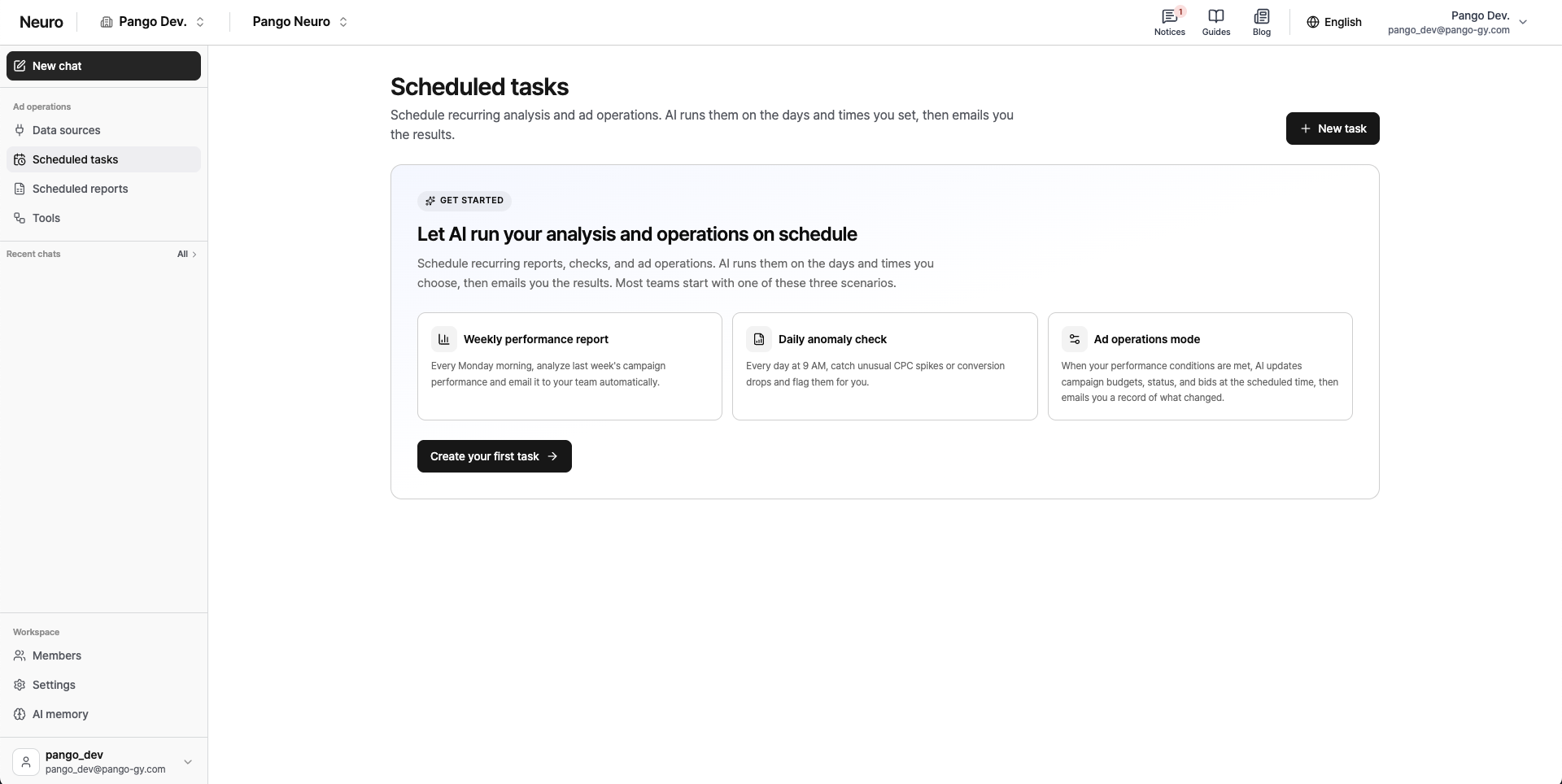
Scheduled tasks let the AI automatically take care of recurring daily or weekly work, like writing reports and analyzing data, at a set time.
Create a scheduled task
Go to Workspace > Scheduled tasks and click New task.
Title and instructions: Name the task and describe in detail what you want the AI to do (the prompt).
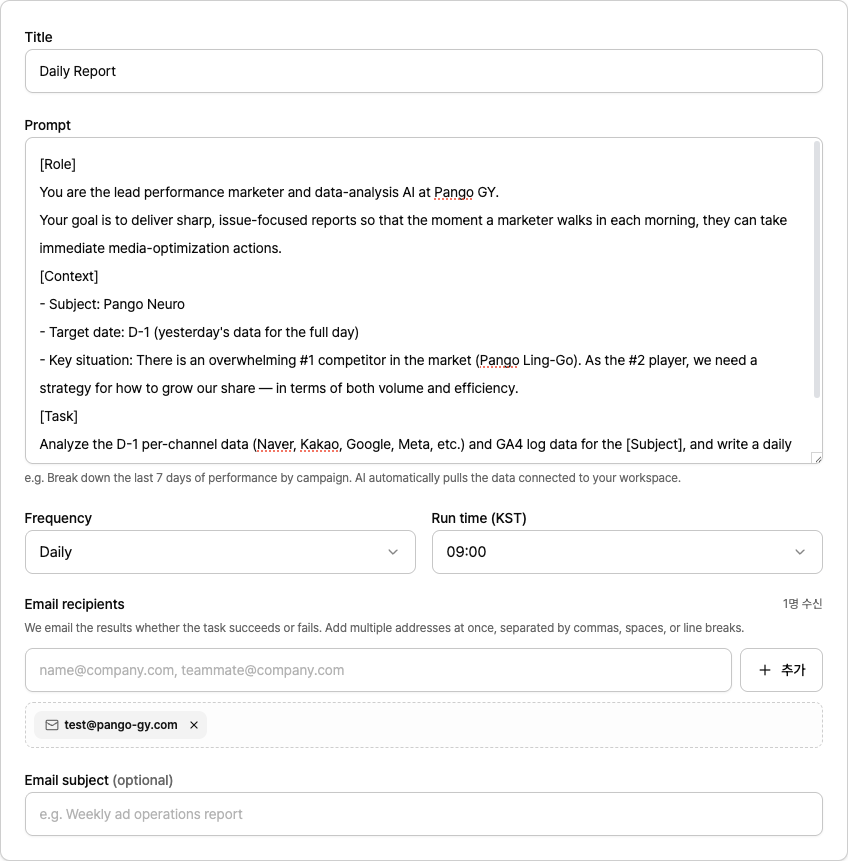
Schedule: Choose how often it runs (daily/weekly), which days, and the exact run time (Korea time).
Delivery: Enter the email addresses that should receive the results and an email subject (optional), then save.
Running and managing tasks
Automatic delivery: At the set time, the AI runs the task you entered and emails the results to the addresses you specified.
History: In the Run history tab, you can look back at all past results and delivery records anytime.
Flexible control: Use the toggle to pause a task or turn it back on, or click [Run now] to get results right away, regardless of the schedule.